Typically, when you search for a domain name, the resolver will recursively pass your request on until it finds the Authoritative Name Server. This can be a potential security hole as someone can easily track down all the url that you visited, as well as it's paths. Unbound is a validating, recursive, and caching DNS resolver. Pi-hole includes a caching and forwarding DNS server, now known as FTLDNS. After applying the blocking lists, it forwards requests made by the clients to configured upstream DNS server. By combining the two software, we can make sure that all DNS requests go straight to a Authoritative Name Server and eliminating the middle man (i.e. your own hosted Unbound becomes that middle man and finds the Authority for you in a nonrecursive mode). This article assumes you have general knowledge of how <a href="https://pi-hole.net/">PiHole</a> and docker works. *Note* If you are running pihole on a vm or hardware then just follow this guide. Steps: 1. Install docker 2. Create a docker compose file (PiHole_docker-compose.yml) using the code below in whatever path you decide to use: ============= version: '3' services: pihole: image: 'pihole/pihole:latest' privileged: true restart: unless-stopped dns: - 127.0.0.1 - 1.1.1.1 links: - unbound ports: - '80:80' - '53:53/udp' - '53:53/tcp' environment: TZ: TZ=America/Chicago ServerIP: YOUR HOST IP GOES HERE WEBPASSWORD: YOUR PW GOES HERE DNS1: '169.254.0.19#5335' cap_add: - NET_ADMIN volumes: # ./Config will mount to the volume on your host machine and save the settings in the below locations - './config/pihole:/etc/pihole' - './config/dnsmasq:/etc/dnsmasq.d' networks: pihole_net: ipv4_address: 169.254.0.3 unbound: image: klutchell/unbound restart: unless-stopped volumes: - './config/unbound:/opt/unbound/etc/unbound' networks: pihole_net: ipv4_address: 169.254.0.19 networks: pihole_net: driver: bridge ipam: config: - subnet: 169.254.0.0/29 ============== 3. In the same location, create config/unbound directory 4. Create a new file named unbound.conf 5. Paste in the below code and modify as needed. ============== server:
# If no logfile is specified, syslog is used
# logfile: "/var/log/unbound/unbound.log"
verbosity: 0
interface: 169.254.0.19
port: 5335
do-ip4: yes
do-udp: yes
do-tcp: yes
# May be set to yes if you have IPv6 connectivity
do-ip6: no
# You want to leave this to no unless you have *native* IPv6. With 6to4 and
# Terredo tunnels your web browser should favor IPv4 for the same reasons
prefer-ip6: no
# Use this only when you downloaded the list of primary root servers!
# If you use the default dns-root-data package, unbound will find it automatically
#root-hints: "/var/lib/unbound/root.hints"
# Trust glue only if it is within the server's authority
harden-glue: yes
# Require DNSSEC data for trust-anchored zones, if such data is absent, the zone becomes BOGUS
harden-dnssec-stripped: yes
# Don't use Capitalization randomization as it known to cause DNSSEC issues sometimes
# see https://discourse.pi-hole.net/t/unbound-stubby-or-dnscrypt-proxy/9378 for further details
use-caps-for-id: no
# Reduce EDNS reassembly buffer size.
# Suggested by the unbound man page to reduce fragmentation reassembly problems
edns-buffer-size: 1472
# Perform prefetching of close to expired message cache entries
# This only applies to domains that have been frequently queried
prefetch: yes
# One thread should be sufficient, can be increased on beefy machines. In reality for most users running on small networks or on a single machine, it should be unnecessary to seek performance enhancement by increasing num-threads above 1.
num-threads: 1
# Ensure kernel buffer is large enough to not lose messages in traffic spikes
so-rcvbuf: 1m
# Ensure privacy of local IP ranges. Remove ones you dont need
private-address: 192.168.0.0/16
private-address: 169.254.0.0/16
private-address: 172.18.0.0/12
private-address: 10.0.0.0/8
private-address: fd00::/8
private-address: fe80::/10
# The action allow gives access to clients from that netblock. It gives only access for recursion clients (which is what almost all clients need). Nonrecursive queries are refused.
# The action allow_snoop gives nonrecursive access too.
access-control: 127.0.0.1 allow_snoop #Container ip address. Good for debugging in shell.
access-control: 169.254.0.0/16 allow # Allow only bridged clients ============== 6. In Cmd run the following command: docker compose -p pihole -f "PiHole_docker-compose.yml" up -d
Do you have an USB device that you want to connect to your Android? Most USB devices (such as mouses, keyboard, xbox dongles, flash drives, and even external hard-drives) are capable of running on the Android system.
You may need to purchase a converter, as most phones use microusb, if your device does not have a standard USB port. USB host comes with Android 3.0(Honeycomb) and newer. There are times when the ROM or firmware that you have on your Android operating system may not have the driver/software for that particular device.
That said, it is pretty rare to find a peripheral that is not supported.
Requirement to run USB host.
- Android 3.x and up
By now you probably know that the Android is capable of playing FLASH, GBA, NES, SNES, and SEGA games, but did you know that PSP games also works?
Developers have created an emulator that have successfully played PSP games in .iso and .cso files. The app PPSSPP is still just a prototype and most PSP is not supported.
That said, PPSSPP has huge potential so watch the video below, test out the app, and support the developer. Remember that you must dump or download the PSP games yourself as PPSSPP is only an emulator.
Lets be honest, one of the main reasons to be on Jelly Bean is the awesome new Voice Search feature. The improved accuracy and response time makes Voice Search the new Siri killer. Now you can simply say stuff like "Will it rain tomorrow" and Voice Search will figure out the correct response.
If you try to download Voice Search on a non-Jelly bean system, it will simply say "Your device is not compatible" and rejects the installation. Fortunately, rooted ICS users can get the app on their devices too using the steps below.
Steps to enable Google Voice Search on ICS Devices
Requirement:
- Root
- ARMv7/ARMv6 devices only
-You must be on a deodexed ROM(most custom roms are)
Steps:
1) Download the zip file of the correct modded version of Google Now for your ARM device(see requirement - Links for ARMv6 and ARMv7)
2) Put the file in your SDcard.
3) Flash the zip in CWM. This will install Google Now into your app drawer
4) Install Google latitude installed set up the account for latitude
5) Open Google Now and go through the setup process. Click the "Yes, I'm in." option and your cards appear
6) Complete!
Ever plugged in an external keyboard with Bluetooth/USB and notice that some basic android key events are missing? Useful android key events such as the Home, Search, and Menu are critical to using any android system. For my Bluetooth keyboard, I had no Search key. This made it very difficult to find anything on my Android device. Each time I wanted to do the Search event, I had to press on the capacitive search key manually on the Android phone. There is a solution for this.
Requirements:
- Root
- KeyTest.Apk
- Any File Explorer(ES File Explorer: Go to "Settings"->Scroll down-> "Root Settings" -> Check all boxes)
Steps:
1) Download, install, and open KeyTest.Apk on your Android Device
2) Press the hard key you want to simulate. I pressed on capacitive Search key on my Android device.
There is a few things to know:
- You will see a "ScanCode": this is the number that maps the device. Mine is 217 (good to know but you dont need this information)
- You will see a "keyCode" under KeyEvent: this is the Action event. Mine is KEYCODE_SEARCH. Remember the value after KEYCODE_.
3) After the BlueTooth/USB is connected, pressed on any currently mapped keys that is not used. I Pressed FN+10 to simulate "F12"
- Write down the ScanCode. Mine is 88
4) On the File Explorer, navigate to /system/usr/keylayout.
5) Find qwerty.kl(Older system) or Generic.kl(Newer system) and make a backup copy somewhere else.
*Note* You can check which one it is by opening qwerty.kl and it should say if it is depreciated near the top
6) Open qwerty.kl or Generic.kl. You will see a listing of "Key 'ScanCode' 'KEYCODE_ACTION' ". Find the ScanCode that was written down in step 3) above. Mine is listed as Key 88 F12
7) Change the KEYCODE_ACTION to the new mapping. Mine is changed to Key 88 SEARCH
8) Save the file and reboot
9) Done! Now whenever I press FN+10, I can simulate the Search key
Important Extra notes:
- Android KeyCode - A long list of KEYCODE_ACTION events
- While you can use KEYCODE_ACTION more then once, you cannot use the same ScanCode more than once. This will cause the Keyboard to fail, so just use the on-screen touchkeyboard to replace qwerty/Generic.kl with the backup.
Lets review the basics: firstly, what is tethering and Adhoc WiFi? Tethering is basically the sharing of internet connection of an internet capable device(host) with other devices(clients).
The host device usually have internet connection from some kind of data plan such as 3G, 4G, and/or Edge. Obviously, it would be a waste of money to purchase data plans for every device that you own.
Have you started noticing that your Android device is running slow or sluggish? Well, you are not alone. It really is easy to keep your Android running like new. You just need to learn how to bring back the performance of the device and know how to keep it that way; as there is only a handful of problems that could slow down your device.
Like any other computing devices, it requires regular maintenance and due diligence. Follow the steps below to greatly improve any Android.
1. Uninstall or Remove Unused Apps
Applications are great, espically the widgets, but once you start to install them on your device, they start to stack up to become a force that can greatly slow down the system. Ask yourself, do you really need that app? Also do not forget to keep a close eye on free apps, as the trend has become to display background ads on the notification bar.
Steps:
Go into Settings
Click on Applications
Click on Running Services or Manage Applications
Uninstall or stop any apps that you don't need
2. Install a Task Manager tool
Task managers are able to kill running apps. It can clear the RAM so that the Android system has more memory to work with. If you have alot of running apps with little to no ram, your system will feel close to a crawl.
If you havn't heard by now, Google has decided to change some of the names of its apps - mostly by adding "Play" to the title.
Not sure what kind reasoning they had to do this, but I am pretty sure they know what they are doing (I hope!).
Apps that had a title change:
Google Android Market = Google Play Store
Google Music = Google Play Music
Google Books = Google Play Books
Google Movies = Google Play Movies
Google Play Store can be updated manually by copying and installing the Google Play Store apk below.
Now that I have been using Android for over 5 years, the list of Android devices on my Android market has grown to become a huge database of unused and dysfunctional Android devices. After upgrading to the Samsung Galaxy Note N7000 and finding it near impossible to efficiently select the desired Android device to simply install an app using the Android Market's website, I decided it was time for some cleaning(see picture below).
Unfortunately, and even after much complaint, Google still has not added a "delete" feature for devices on Android Market - clearly to emphasize their love for hording and dominance over your history and data. Until they do, we will have to manage with a work around; hiding the device from view. See below for instructions.
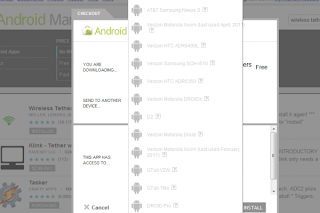 |
| List of old, unused, incompatible devices |
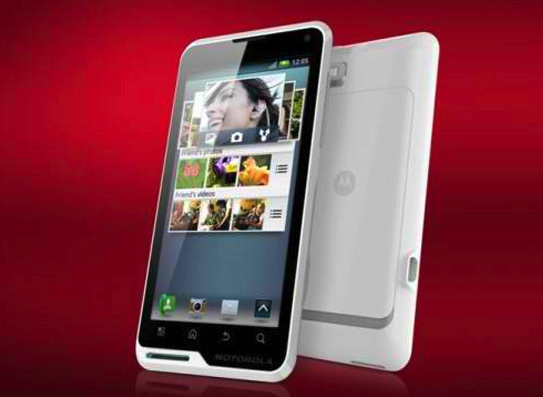
The Motorola Motoluxe, expected for release in February/March 2012, is Motorola’s attempt to create an affordable, large screen, Android smartphone. The MOTOLUXE, alongside the Defy Mini, is one of Motorola’s first releases since Motorola Mobility - the mobile phone side of the business - was acquired by Google.
Many saw this as a move by Google not necessarily to turnaround a struggling part of the Motorola business but rather an attempt to expand their patented technology portfolio to use in other future Google phones. Nevertheless, the Google owned phone makers announced in 2011 their intention to release the two new attempts to break into the smartphone market.
The MOTOLUXE, with its large 4inch, 480 x 854 pixel screen on the front and a sharp 8 megapixel camera on its back with a built in zoom feature, certainly looks like a potential leader in the low-cost market. It’s very unlikely to ever rival the likes of the iPhone but then it was never really intended to as Motorola look to capitalise on this low-budget market.
As you know, one of the major selling point of Android over iOS is the ability to play Flash content. While the Android OS handles Flash flawlessly using Adobe Flash Player, I find myself having trouble playing Flash games through the web browser.
Plugging in a bluetooth mouse would easily solve the problem, but in most cases, I am playing the Flash game on the go, with no mouse readily available. So using the touch screen to control the flash games is the only option.
The browser app was not designed for gaming purposes; it would commonly mistake the touch commands for the game as a scroll, zoom, or some other unwanted action. So the true problem was: how to play flash, or swf files, on Android outside of the browser?
Printing can be difficult sometimes; when the only printer you have is not connected to the network. You would then have to save whatever website, email, or document you are viewing from your printer-less laptop or Android device and send it to the PC with printer connectivity. All that work just to print a simple page.
With Google Cloud Print, that time consuming process is a thing of the pass. The files you want to print is sent securely through the web, or "cloud". Since its sent through the internet, you can print anywhere, anytime, and without any printer drivers. It also doesn't matter if its a tablet, phone, laptop, tv, or PC; there are no boundaries to Google Cloud Print.
You can setup Google Cloud Print with Google "Cloud Ready" Printers or with the classical usb/network printers you have connected at home. For the Cloud Ready printers, all there needs to be done is plugging it in to the network using the instructions provided by the manufacturer, which most of the time is plug and play. For classical printers, you would need to use a "Google Cloud Printer Connector". The connector is basically the original PC with the printer installed linked up with Google Chrome.
How To Set up Google Cloud Print With Classical Printers
These instructions will enable the "Google Cloud Connect". This will bridge the connection between the printer enabled PC with any other devices. or with the classical usb/network printers you have connected at home. For the Cloud Ready printers, all there needs to be done is plugging it in to the network using the instructions provided by the manufacturer, which most of the time is plug and play. For classical printers, you would need to use a "Google Cloud Printer Connector". The connector is basically the original PC with the printer installed linked up with Google Chrome.
How To Set up Google Cloud Print With Classical Printers
These instructions will enable the "Google Cloud Connect". This will bridge the connection between the printer enabled PC with any other devices.
*Updated 3/07/12* Google has changed Android Market to Android Play Store.
Ever since the announcement, the new Android Market3.0 has been rolling out for Android devices with 2.2 or higher. The main feature of this Android market is the way users purchase books and movies, which starts at $1.99. These can be streamed or downloaded to an Android device. The new services is currently only available in US markets. In addition to the service features, they also made a massive overhaul of the UI to greatly enhance speed and usability.
Android users who bought their Android phones off a 3rd party(like Ebay or other people), mat soon realize that the device will not work with their mobile cell phone provider. The reason for this is because Android phones are "locked" to one carrier. Like IPhones, Android software is designed to keep you loyal to one company. However, there is a process to unlock most Android phones. This process is device specific and can be usually found on the internet.
Nonetheless, the general procedure is still the same, you must obtain the unlock code to unlock an Android Phone. Also, be sure to do some Google-ing/research before you make any attempt to unlock a phone; there may be some unforeseen consequences down the line if you are unprepared.
T-Mobile:
Typically you must have a contract with them before they will give you a Unlock code. T-Mobile will provide the code and instructions under certain conditions. Give them a call at their customer service and they will be happy to assist you. Keep in mind that you are entitled to receive an unlock code and may want to push the issue especially if you are a loyal customer(the long-term traveling excuse usually works).
Ever wanted to share some music or videos with another buddy that also has an Android device? Android lets you do that with BlueTooth when you lack the access to a PC or the internet.
Never heard of BlueTooth? Its esstenially just a wireless communication protocol that enables direct mobile data connection between any two electronic devices.
Bluetooth is hands down the easiest way for two Android devices to communicate directly with each other, without the need of a 3rd party. These are instructions on how to pair and transfer files between two Android tablets and phones using BlueTooth and ESFileExplorer.
Both Devices must follow these steps:
1) Turn on BlueTooth in settings and select "Visible"(you may want to increase visible timeout)
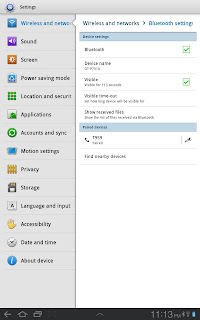 2) Select "Find nearby devices"
Gamevil recently released Colosseum: Heros, a sequel to the popular Colosseum. The game is basically the extension of the first, with more spells and even more baddies.
The game lets you select between a knight or vampire. The character that is selected has a unique path for the skills and the equipment, which is purchased from the armory screen before each battle.
Like most free games, you also have the option to buy premium items. Once equipped with the spells and equipment, the hero is then thrown into the arena to battle for glory, honor, and gold(exactly as seen below).
 Although the content has been extended to great lengths, there is not much more then leveling the character, killing monsters, and buying items. The game is essentially a repetitive hack-n-slash with no story or much substance.
The selling point of Colosseum Heros is the price: free (Colosseum is at $.99). There is no reason to turn down a pretty decent game with great looking graphics as this.
Although the content has been extended to great lengths, there is not much more then leveling the character, killing monsters, and buying items. The game is essentially a repetitive hack-n-slash with no story or much substance.
The selling point of Colosseum Heros is the price: free (Colosseum is at $.99). There is no reason to turn down a pretty decent game with great looking graphics as this.
For parents who can't afford to pay their kids costly cellular plans, for students who are living off ramen noodles, and finally, for those of us that just refuse to be bounded by a cellular contract, Android is here with free mobile messaging and minutes.
How does free calling and SMS work on the Android? The answer is simple: through the internet. This concept doesn't just work on phones... In fact, I can even use my Android tablet to make calls using the microphone for the camera. The only catch is that my Android device needs to be connected to WiFi, 3G, or 4G data networks.
Sure, 3G and 4G plans can be expensive but that can replace the cost of a monthly contract for minutes and texting. Most people are typically around free Wifi networks for most of their day anyways (@work,school,cafe, restaurants, etc) so the data plan shouldn't be needed.
Once again the Android x86 Project team has released the latest version of the Android OS live CDs, Android 4.0 IceCream, for x86 processors(the cpus that is running on your PC). While Android 4.0 still has many bugs and is unavailable on most Android phones, it is worth the install an Android Virtual Machine to see what it has to offer. Download links are below.
While this release may not seem significant to most Android users, big chip manufacturers now has the ability to use the source code to build a heavy competition against ARM in the mobile market; ARM currently has a monopoly over most of the Android mobile CPU market, since Android was not designed for x86(intel/amd) architecture. With the mobile market constantly expanding, Intel and AMD will no doubt want in on the piece of the profit.
Sand Studio has now introduced a new Android App that allows the user full control of the Android phone or Android tablet. What makes it great is that you can do all of this from the PC's web browser, without ever touching the device. All that is required is installing the app on any Android device.
With AirDroid you can:
- Access, send, and manage SMS messages
- Manage contacts
- Uninstall and install apps from Android Market
- Backup apps(they are saved as apk files)
- Manage music and ringtones
- Access phone information(system, battery, status, etc.)
- Manage and transfer files
 
|
|