Android Simplicity

How-To #46: Speed up Slow/Sluggish Android Devices

Have you started noticing that your Android device is running slow or sluggish? Well, you are not alone. It really is easy to keep your Android running like new. You just need to learn how to bring back the performance of the device and know how to keep it that way; as there is only a handful of problems that could slow down your device. 


Like any other computing devices, it requires regular maintenance and due diligence. Follow the steps below to greatly improve any Android.

1. Uninstall or Remove Unused Apps
Applications are great, espically the widgets, but once you start to install them on your device, they start to stack up to become a force that can greatly slow down the system. Ask yourself, do you really need that app? Also do not forget to keep a close eye on free apps, as the trend has become to display background ads on the notification bar.

Steps:
Go into Settings
Click on Applications
Click on Running Services or Manage Applications
Uninstall or stop any apps that you don't need

2. Install a Task Manager tool
Task managers are able to kill running apps. It can clear the RAM so that the Android system has more memory to work with. If you have alot of running apps with little to no ram, your system will feel close to a crawl.

Update The New Google Play Store Manually

If you havn't heard by now, Google has decided to change some of the names of its apps - mostly by adding "Play" to the title. 

Not sure what kind reasoning they had to do this, but I am pretty sure they know what they are doing (I hope!). 

Apps that had a title change:
Google Android Market = Google Play Store
Google Music = Google Play Music
Google Books = Google Play Books
Google Movies = Google Play Movies

Google Play Store can be updated manually by copying and installing the Google Play Store apk below.

How-To #45: How to Hide/Delete Android Devices on Google Market Account

Now that I have been using Android for over 5 years, the list of Android devices on my Android market has grown to become a huge database of unused and dysfunctional Android devices. After upgrading to the Samsung Galaxy Note N7000 and finding it near impossible to efficiently select the desired Android device to simply install an app using the Android Market's website, I decided it was time for some cleaning(see picture below). 

Unfortunately, and even after much complaint, Google still has not added a "delete" feature for devices on Android Marketclearly to emphasize their love for hording and dominance over your history and data. Until they do, we will have to manage with a work around; hiding the device from view. See below for instructions.

List of old, unused, incompatible devices

Review Corner: Motorola MOTOLUXE

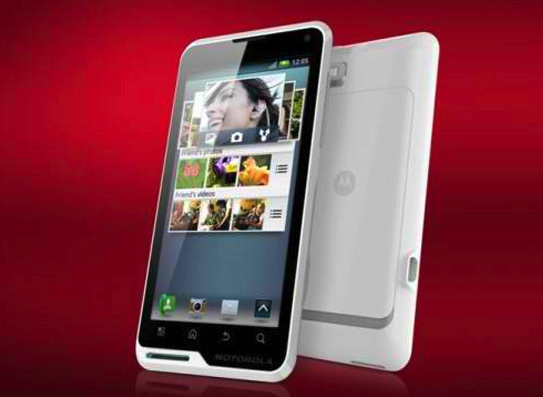
The Motorola Motoluxe, expected for release in February/March 2012, is Motorola’s attempt to create an affordable, large screen, Android smartphone. The MOTOLUXE, alongside the Defy Mini, is one of Motorola’s first releases since Motorola Mobility - the mobile phone side of the business - was acquired by Google. 

Many saw this as a move by Google not necessarily to turnaround a struggling part of the Motorola business but rather an attempt to expand their patented technology portfolio to use in other future Google phones. Nevertheless, the Google owned phone makers announced in 2011 their intention to release the two new attempts to break into the smartphone market.

The MOTOLUXE, with its large 4inch, 480 x 854 pixel screen on the front and a sharp 8 megapixel camera on its back with a built in zoom feature, certainly looks like a potential leader in the low-cost market. It’s very unlikely to ever rival the likes of the iPhone but then it was never really intended to as Motorola look to capitalise on this low-budget market.

How-To #44: Play Flash Games On Android

As you know, one of the major selling point of Android over iOS is the ability to play Flash content. While the Android OS handles Flash flawlessly using Adobe Flash Player, I find myself having trouble playing Flash games through the web browser

Plugging in a bluetooth mouse would easily solve the problem, but in most cases, I am playing the Flash game on the go, with no mouse readily available. So using the touch screen to control the flash games is the only option.  

The browser app was not designed for gaming purposes; it would commonly mistake the touch commands for the game as a scroll, zoom, or some other unwanted action. So the true problem was: how to play flash, or swf files, on Android outside of the browser?

How-To #43: Setup Google Cloud Print For Android & PC

Printing can be difficult sometimes; when the only printer you have is not connected to the network. You would then have to save whatever website, email, or document you are viewing from your printer-less laptop or Android device and send it to the PC with printer connectivity. All that work just to print a simple page. 

With Google Cloud Print, that time consuming process is a thing of the pass. The files you want to print is sent securely through the web, or "cloud". Since its sent through the internet, you can print anywhere, anytime, and without any printer drivers. It also doesn't matter if its a tablet, phone, laptop, tv, or PC; there are no boundaries to Google Cloud Print.
You can setup Google Cloud Print with Google "Cloud Ready" Printers or with the classical usb/network printers you have connected at home. For the Cloud Ready printers, all there needs to be done is plugging it in to the network using the instructions provided by the manufacturer, which most of the time is plug and play. For classical printers, you would need to use a "Google Cloud Printer Connector". The connector is basically the original PC with the printer installed linked up with Google Chrome.

How To Set up Google Cloud Print With Classical Printers
These instructions will enable the "Google Cloud Connect". This will bridge the connection between the printer enabled PC with any other devices.

Update The New Android Market Manually

  *Updated 3/07/12* Google has changed Android Market to Android Play Store.


Ever since the announcement, the new Android Market3.0 has been rolling out for Android devices with 2.2 or higher. The main feature of this Android market is the way users purchase books and movies, which starts at $1.99. These can be streamed or downloaded to an Android device. The new services is currently only available in US markets. In addition to the service features, they also made a massive overhaul of the UI to greatly enhance speed and usability.

Popular Posts
AndroidSim Mobile App
What are you using?